Configuring the Filter Matcher
Top-Level Controls
The Filter Matcher provides a single top-level configuration option that determines whether evaluation should continue across all filter groups or stop after a match is found (or a default value is applied) within a group.
 |
This option can be useful when different groups update different fields and use different matching modes. For example, the Network group might use first match to set a location in the WorkflowContext, while the Application group uses last match to set a custom_info field.
By default, this option is set to false (do not continue evaluation after a match is found). This is the recommended setting because it improves performance and helps prevent values from being overwritten.
When set to true, all configured groups (either explicitly specified or included in the default set) are evaluated in priority order. The CEvent is updated each time a match is found.
For example, consider the following filter groups, each containing one or more expressions that match an alert:
Network
Application
OperatingSystem
Storage
When the "Continue evaluating..." control is enabled, the Network group is evaluated first. If a filter matches, the alert is updated, and evaluation continues with the Application, OperatingSystem, and Storage groups. Each group can update the alert if a matching filter is found.
When the "Continue evaluating..." control is disabled, evaluation stops after a match is found in the Network group.
Note
If the matchFilter function uses a destination field override, that override takes precedence over the destination field configured in the Filter Matcher. If "Continue evaluating..." control is enabled and a destination override is in effect, subsequent matching values can overwrite the destination field.
Filter Groups
The Filter Matcher uses filter groups to organize related filters into logical collections. For example, a group might contain all filters that apply to a specific subset of alerts or operational area, or all filters used to set values for the Network team.
Filter groups enable a set of filters to be applied to specific events, alerts, or Situations through the filterGroups parameter of the matchFilter action.
Note
There is no performance benefit to splitting a large number of related filters across multiple groups.
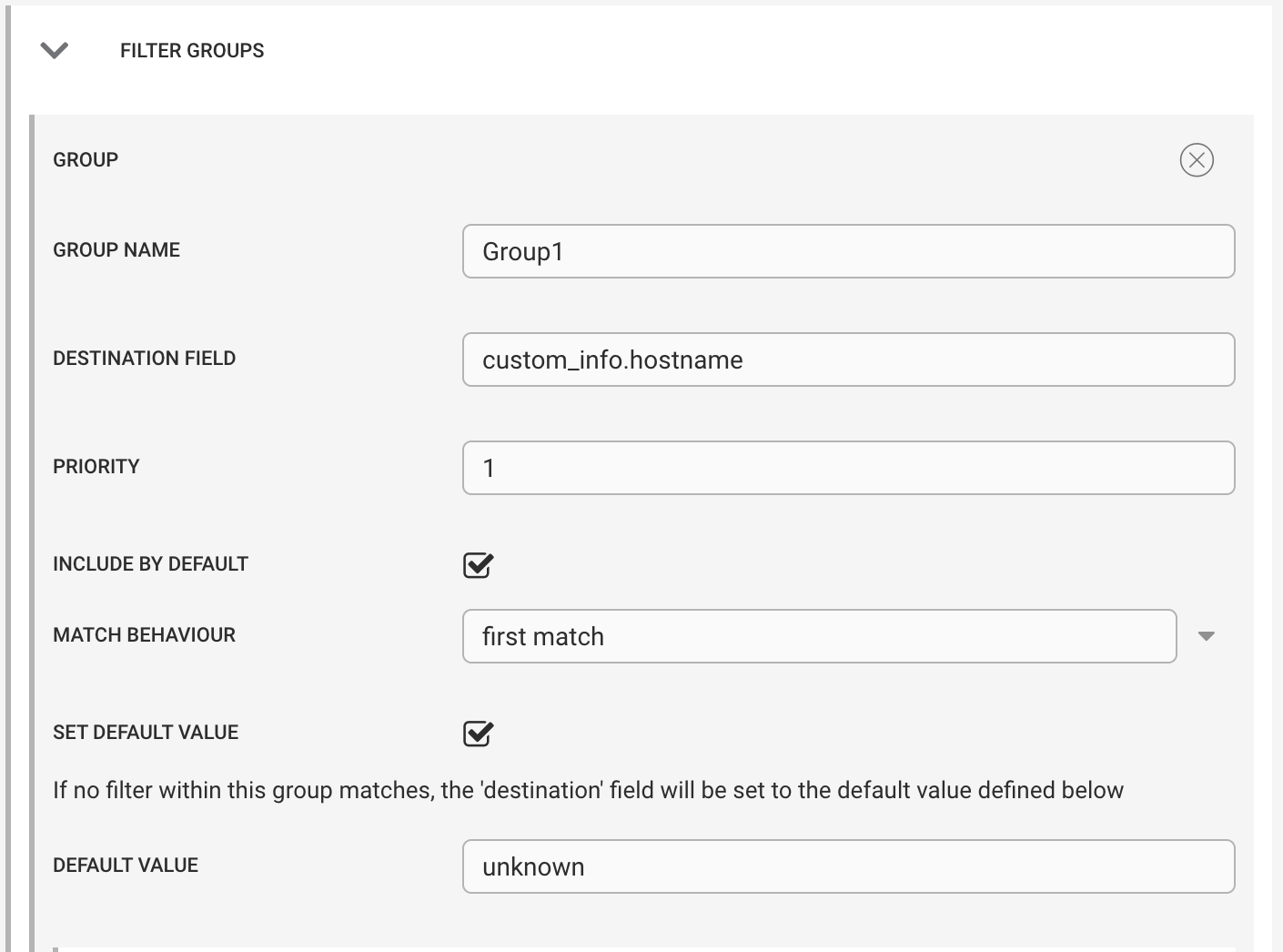 |
A filter group has the following attributes:
Attribute | Description |
|---|---|
Group Name | A unique name for the group. This name is used by the |
Destination Field | The core, |
Priority | Determines the order in which groups are evaluated. Priority 1 is evaluated first, followed by 2, 3, and so on. If two groups have the same priority, they are evaluated in alphabetical order. |
Include by Default | Specifies whether the group is evaluated when the |
Match Behavior | Determines whether evaluation stops after the first match (recommended) or continues to evaluate all filters in the group after a match is found. |
Set Default Value (Optional) | If configured and no filter in the group matches, sets the destination field to the specified value. |
Note
If a default value is configured, it is treated as a match for the purposes of the Evaluate Subsequent Groups setting.
For example, consider two groups: Group1 and Group2, with Evaluate Subsequent Groups disabled. If Group1 has a default value configured and no filter in the group matches, the default value is applied and evaluation stops. In this case, Group2 is not evaluated because the default value is considered a match.
Filter Conditions
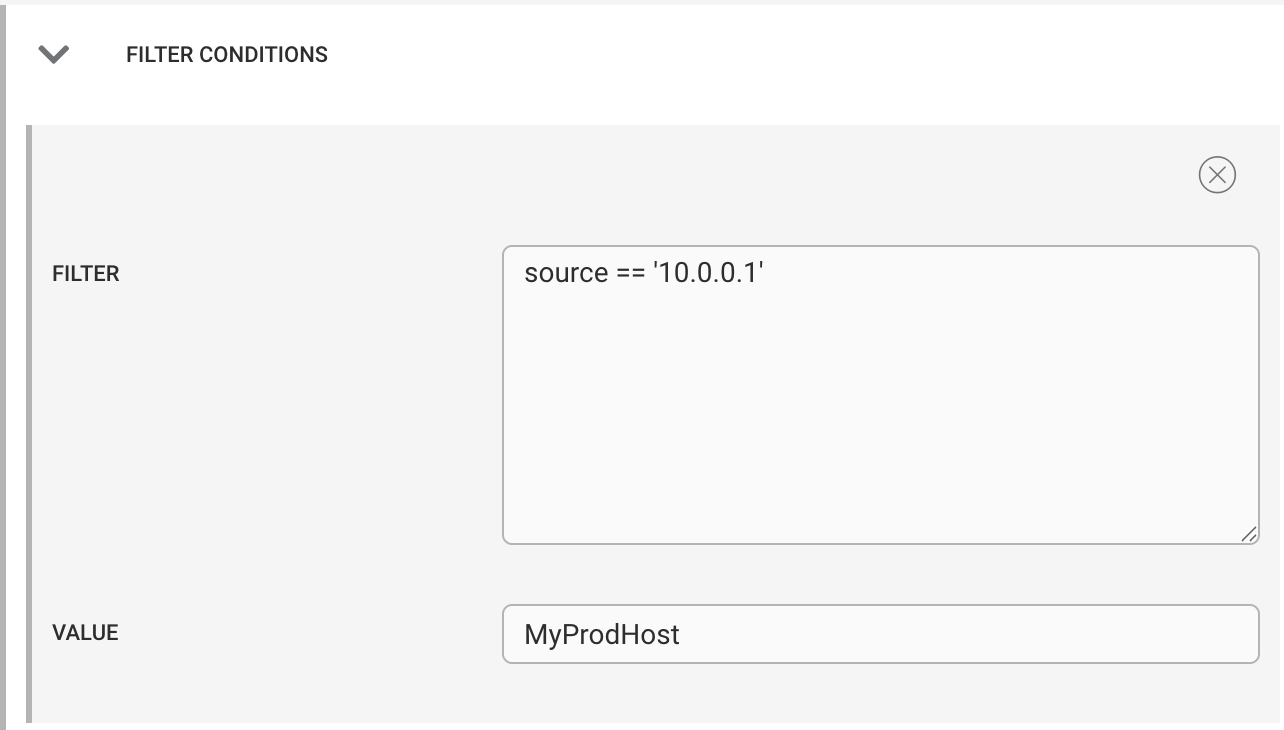
A filter group must contain at least one filter condition. Each filter condition has the following attributes:
 |
Attribute Name | Description |
|---|---|
| The CEvent filter to evaluate. This is a standard CEvent filter, similar to those used in Workflow Engine entry filters or recipe filters. This is an object-based filter and uses object names (for example, |
| The value to assign to the destination field if the filter evaluates to |
Supplying a JSON Value
The Value attribute can be a simple text value or a complex object created by using the $TO_JSON() macro. The syntax is the same as the Payload Macro syntax, but value substitution is not supported. The parsed JSON object is assigned to the destination field.
For example, to set the following object in custom_info.assignmentData when a filter matches:
{ "assignTo" : "Network", "priority" : "P1" }Set the Value attribute to:
$TO_JSON( { "assingnTo" : "Network, "priority" : "P1" } )If the JSON cannot be parsed, the raw text value is assigned to the destination field instead.