Master Alert Selector
The Master Alert Selector workflow tile and its associated functions (findMasterAlert, setMasterAlert, and unsetMasterAlert) allow you to define a set of rules for selecting an alert from a Situation to serve as the master alert. For example, the master alert can be used to determine the impact and urgency values passed to a trouble-ticketing system.
After the master alert is selected, you can reference it in subsequent workflow actions and payloads using the following substitution syntax:
$(workflowContext.master_alert.<field>)
Each selection method provides the following properties:
Property | Description |
|---|---|
Allow Master to Change | Determines whether the master alert can change during the lifetime of the Situation. If set to true (checkbox selected), the master alert can change each time the If set to false (checkbox cleared), the master alert remains fixed to the first calculated alert. You can use the Default: |
Criteria | Defines the selection criteria for this method. You can choose a predefined criterion (for example, Highest Severity) or create a compound criterion consisting of multiple filter and min/max sort clauses. |
Method Name | A unique name for the selector. This name is referenced by the |
Use Reference if No Master Alert Found | Determines whether the reference alert is used when the selection criteria do not return a master alert (for example, when all alerts are filtered out). The reference alert is the first alert in the Situation. Default: |
Preset Criteria
The following preset selection criteria are available. For all presets, if multiple alerts meet the selection criteria, the alert with the lowest alert_id is selected.
Criteria | Description |
|---|---|
Highest Severity | The alert with the highest severity. |
Highest Entropy | The alert with the highest entropy. |
Highest Vertex Entropy | For a topology-based Situation, select the alert with the highest VE (highest-impact node in the situation). See the notes below on using Vertex Entropy |
Top PRC Alert | The alert with the highest PRC score. |
Reference Alert | The alert that created the initial correlation cluster. |
Highest Count | The alert with the highest count. |
First | The alert with the earliest first_event_time (min first_event_time). |
Latest | The alert with the most recent last_event_time (max last_event_time). |
Compound/Filter | A complex set of criteria (see below). |
Note
Vertex Entropy is a node attribute in a topology, not an alert attribute. If Vertex Entropy is used as the sole criterion, the method returns the alert with the lowest alert ID for the node with the highest Vertex Entropy in the causal topology.
Use Vertex Entropy with additional criteria as part of a compound method, or prevent master alert changes after the initial calculation by setting Allow Master to Change to False.
Compound Criteria Methods
If Compound/Filter is selected for "Master Alert Criteria", the "Master Alert Sorter" dialog is displayed.
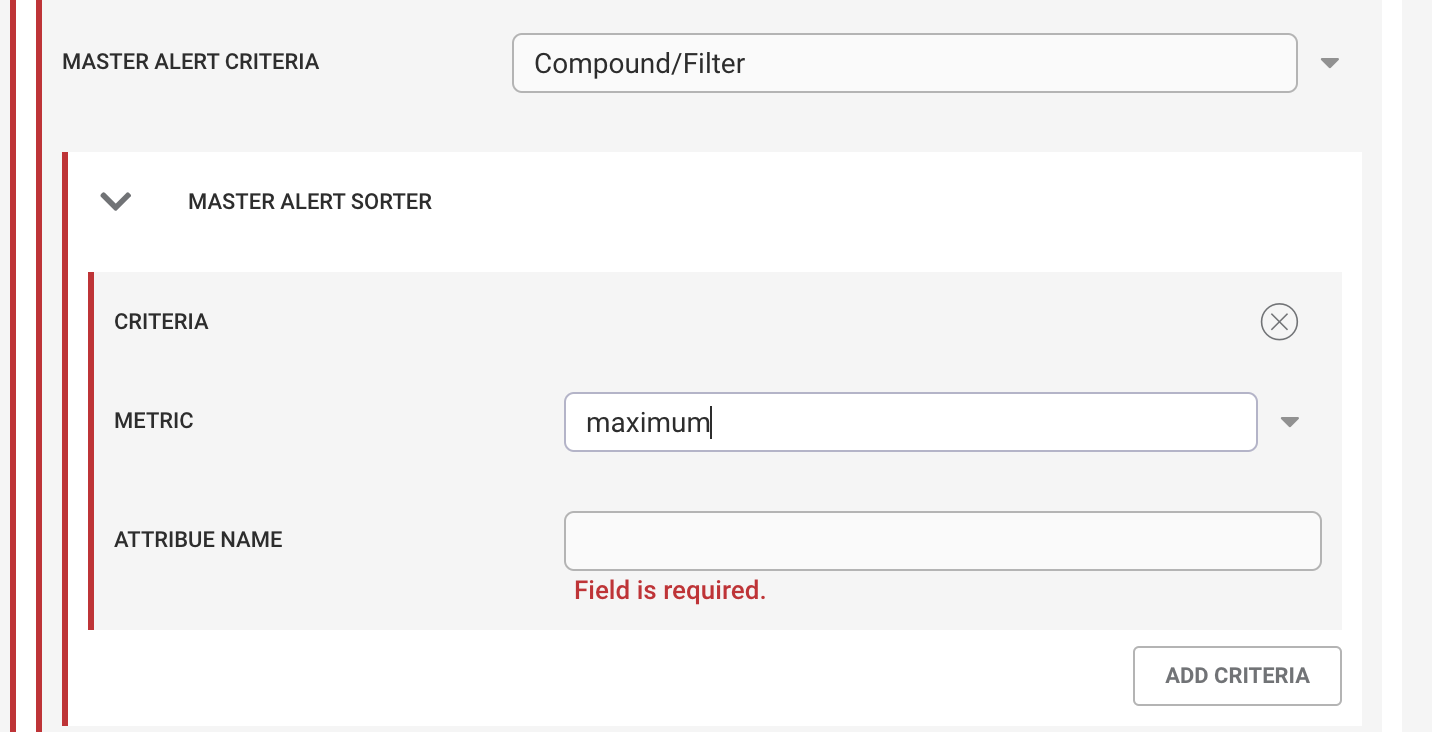 |
This allows a complex rule to be defined using one or more alert filters and/or minimum or maximum sort criteria.
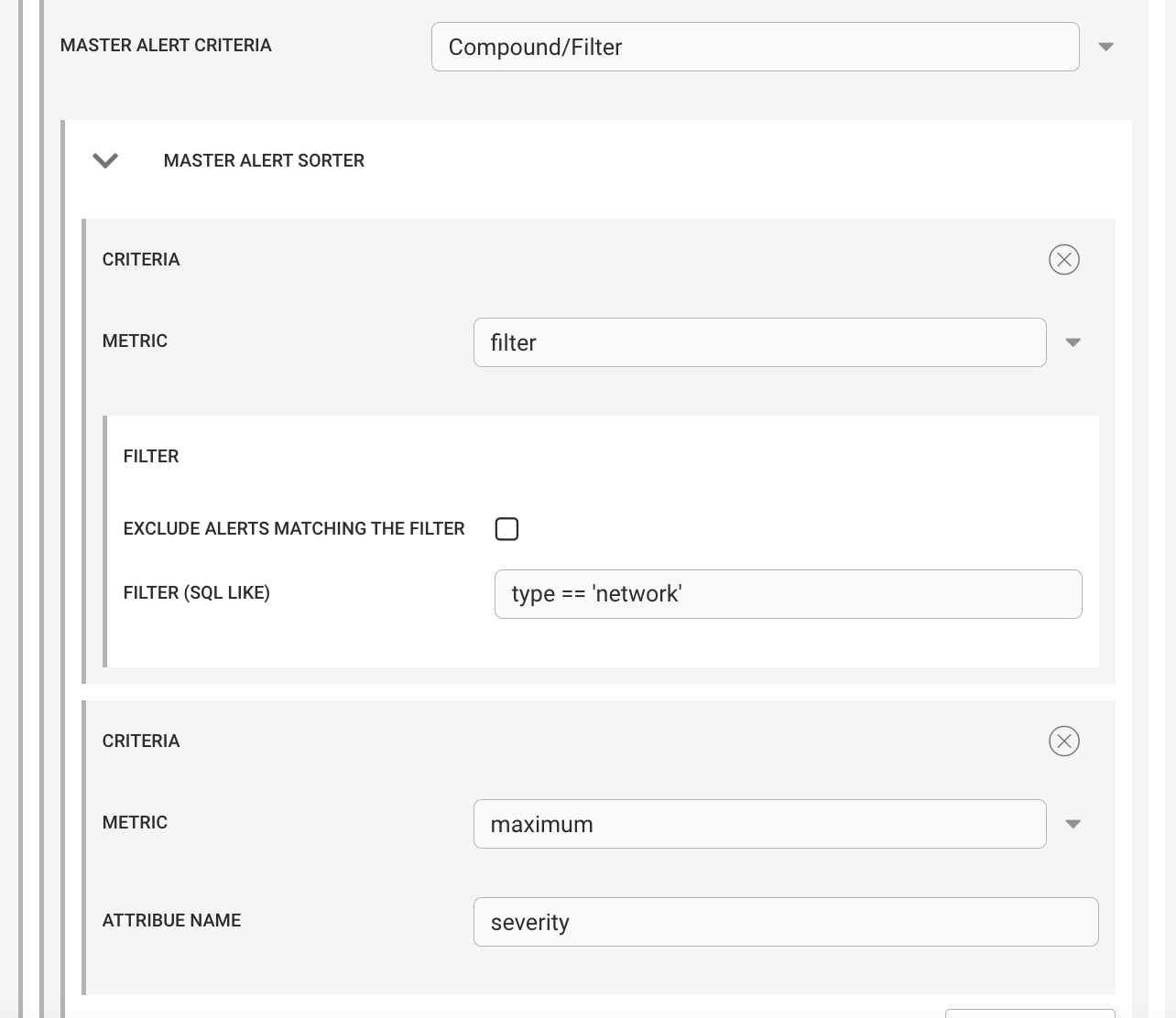
For example, the rule "find the master alert of type "network" with the highest severity" can be defined using the following clauses:
Filter clause:
type == 'network'Max clause:
maximum severity
 |
Filter Criteria
Filters are applied before any sorting is performed. You can choose to include or exclude alerts that match the filter.
For example, to exclude cleared alerts from the calculation, configure the filter clause as severity == 0 and select the Exclude alerts matching the filter option.
Minimum and Maximum Criteria
Minimum and maximum criteria are applied in the order they are defined, and the order can affect the results. After each criterion is evaluated, the results are checked. If a master alert is found, no further sorting is performed.
Each criterion acts as a tie-breaker for the preceding criterion.
For example, consider the following criteria:
Maximum severity
Minimum
first_event_time
And the following alerts (truncated for clarity):
[
  {
    alert_id : 1
    severity : 5
    first_event_time : ...31
  },
  {
    alert_id : 2
    severity : 4
    first_event_time : ...32
  },
  {
    alert_id : 3
    severity : 5
    first_event_time : ...33
  }
]
The sort order is "highest severity, followed by lowest first_event_time".
After sorting by severity, the remaining results are as follows:
[
  {
    alert_id : 1
    severity : 5
    first_event_time : ...31
  },
  {
    alert_id : 3
    severity : 5
    first_event_time : ...33
  },
  {
    alert_id : 2
    severity : 4
    first_event_time : ...33
  }
]
Alerts 1 and 3 have a severity of 5, while Alert 2 has a severity of 4.
Because a single master alert has not yet been identified, the next criterion (lowest first_event_time) is applied to break the tie between Alerts 1 and 3.
After applying this sort, the results are as follows. Since Alert 1 has a unique first_event_time value, it is selected as the master alert.
[
  {
    alert_id : 1
    severity : 5
    first_event_time : ...31
  },
  {
    alert_id : 3
    severity : 5
    first_event_time : ...33
  }
]
If no single master alert is identified after all criteria have been evaluated, alert_id is used as the final tie-breaker. The alert with the lowest alert_id is selected as the master alert.
Using the same alerts, but including count and changing the criterion order, produces a different result.
Criteria:
Maximum count
Maximum severity
Minimum first_event_time
[
  {
    alert_id : 1
    severity : 5
    count : 1
    first_event_time : ...31
  },
  {
    alert_id : 2
    severity : 4
    count : 3
    first_event_time : ...32
  },
  {
    alert_id : 3
    severity : 5
    count : 2
    first_event_time : ...33
  }
]
After sorting by count, Alert 2 is selected as the master alert because it has the highest count and that value is unique. No further evaluation of severity or first_event_time is required, as a master alert has already been identified.
Defaults
If no master alert is identified after all criteria have been evaluated (for example, if all alerts are filtered out), the reference alert is used when the Use reference if no master alert found option is selected (enabled by default). This ensures that a meaningful value is returned when no master alert can be determined.
Right Click Tools
When the Master Alert Selector is installed, the following right-click tools are added:
Alert Client Tools
Set Master Alert
Situation Client Tools
Set Master Alert
Unset Master Alert
The Set Master Alert tool can be executed from either an alert or a situation:
When executed from an alert, the operator is prompted to enter a Situation ID to associate the alert as the master alert for that situation.
When executed from a situation, the operator is prompted to enter an Alert ID to designate as the master alert for the situation.
In both cases, a validation is performed to ensure that the specified alert is a member of the target situation. An alert cannot be set as the master alert for a situation of which it is not a member.
The Unset Master Alert tool removes any previously defined master alert for the selected situation. This allows the master alert to be recalculated the next time the findMasterAlert function is executed.
Note
These tools do not directly set or unset the master alert. Instead, they invoke the predefined Alert Inform and Situation Inform workflows (Set Master Alert and Unset Master Alert). This approach enables the same inform-based workflows to be triggered by external systems, if required.
Master Alert Selector Workflow Actions
There are three functions associated with the Master Alert Selector: findMasterAlert, setMasterAlert, unsetMasterAlert. These actions are described in detail in the Workflow Action Reference.
Action | Description |
|---|---|
| Calculates the master alert. |
| Explicitly sets the master alert to a specified |
| Removes the configured master alert and allows it to be recalculated. This is useful when Allow Master Alert to Change is set to |